Customizing Your QR Code Design
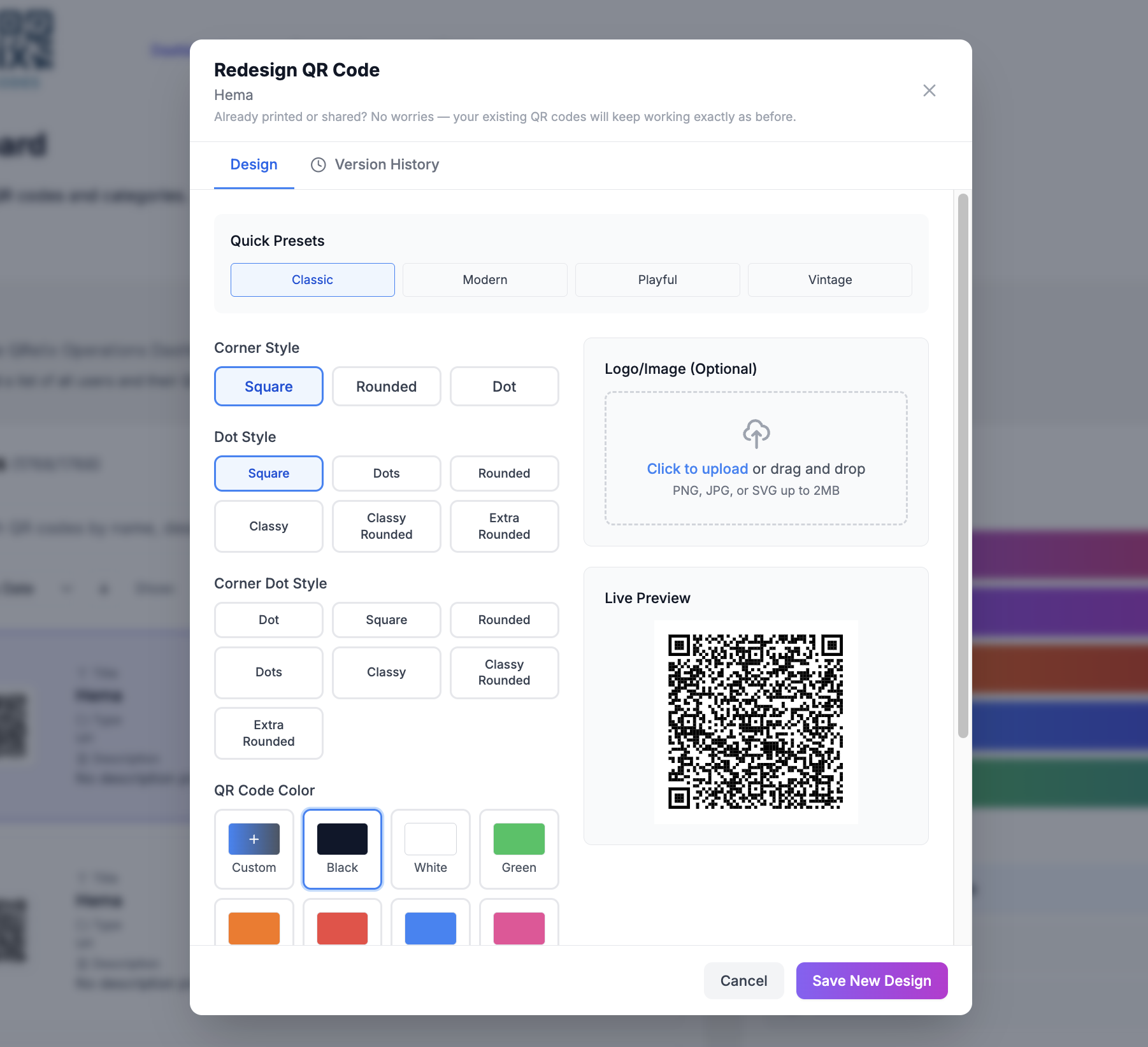
A branded QR code gets scanned more than a plain black-and-white one. QRelix's design editor lets you customize colors, add your logo, and choose module patterns, all while maintaining reliable scannability across every device and camera app.
After choosing your QR code type and entering content, the creation wizard moves to the design step. Every change you make is reflected in a live preview so you can see exactly how your code will look before generating it.
Colors
QRelix gives you full control over two color layers:
- Foreground color: the dark modules that form the scannable pattern. Defaults to black.
- Background color: the space behind the modules. Defaults to white.
You can set these to any hex value to match your brand palette. The editor includes a color picker and supports pasting hex codes directly (e.g., #1A73E8).
Color Best Practices
Contrast is the single most important factor for scan reliability. Follow these guidelines:
- Dark foreground on light background scans most reliably. This is how every QR code scanner is optimized to work.
- Avoid low-contrast combinations like light gray on white, yellow on white, or pastel-on-pastel. These may look elegant but can fail to scan in poor lighting.
- Don't invert the standard (light modules on dark background) unless you've tested extensively. Some older scanners struggle with inverted codes.
- Brand colors work great as long as there's sufficient contrast. A dark navy foreground on a white background, or a deep green on light cream, both scan well.
Not sure if your color combo will scan? QRelix's editor warns you if contrast is too low. Always test your final design on both iOS and Android before printing.
Logo
Upload your company logo to appear in the center of your QR code. QRelix positions it automatically using the code's built-in error correction, which means the logo replaces some data modules but the code remains fully scannable.
Supported Formats
- PNG: Best for logos with transparency
- JPG: Works well for photographic logos
- SVG: Ideal for crisp rendering at any size
Logo Sizing
Keep your logo under 30% of the total code area for the best balance of brand visibility and scan reliability. QRelix will warn you if your logo is too large and could affect scanning.
Square logos with a solid or transparent background work best. If your logo is rectangular, consider using the square version or icon mark instead.
The error correction level is set automatically to handle the logo overlay. You don't need to configure this manually. QRelix optimizes it for you.
Patterns and Styles
Replace the default square modules with alternative shapes to give your code a distinctive look:
- Square: Classic QR code appearance with sharp corners. Best for professional and corporate use.
- Rounded: Softer corners for a modern, approachable feel. Popular for consumer-facing brands.
You can also customize the finder patterns (the three large squares in the corners) independently from the data modules. This means you could have rounded data modules with square finder patterns, or vice versa.
Quiet Zone
The quiet zone is the clear margin around the edge of your QR code. It tells scanners where the code begins and ends.
- Maintain at least 4 modules of clear space on all sides.
- Don't place text, graphics, or borders directly against the code edge.
- QRelix's generated files include the quiet zone automatically, but be mindful when placing the code in your design software.
Design Checklist
Before finalizing your QR code design, run through this checklist:
- Contrast check: Is the foreground significantly darker than the background? Can you read the code at a glance?
- Logo size: Is it under 30% of the code area? Does the editor show any warnings?
- Test scan: Scan the preview from your phone's camera app. Try both iOS and Android if possible.
- Quiet zone: Is there enough clear margin around the code for your intended placement?
- Brand alignment: Do the colors and logo match your brand guidelines?
Next Steps
- Security & Access Controls: Add password protection, expiration, or geofencing before generating
- Downloading & Printing: Export in the right format for print or digital use
- Branding & White-Label: Go further with branded landing pages and custom domains
- Getting Started: Full walkthrough of the QR code creation process