
Browse documentation
Security & Access Controls
Updated
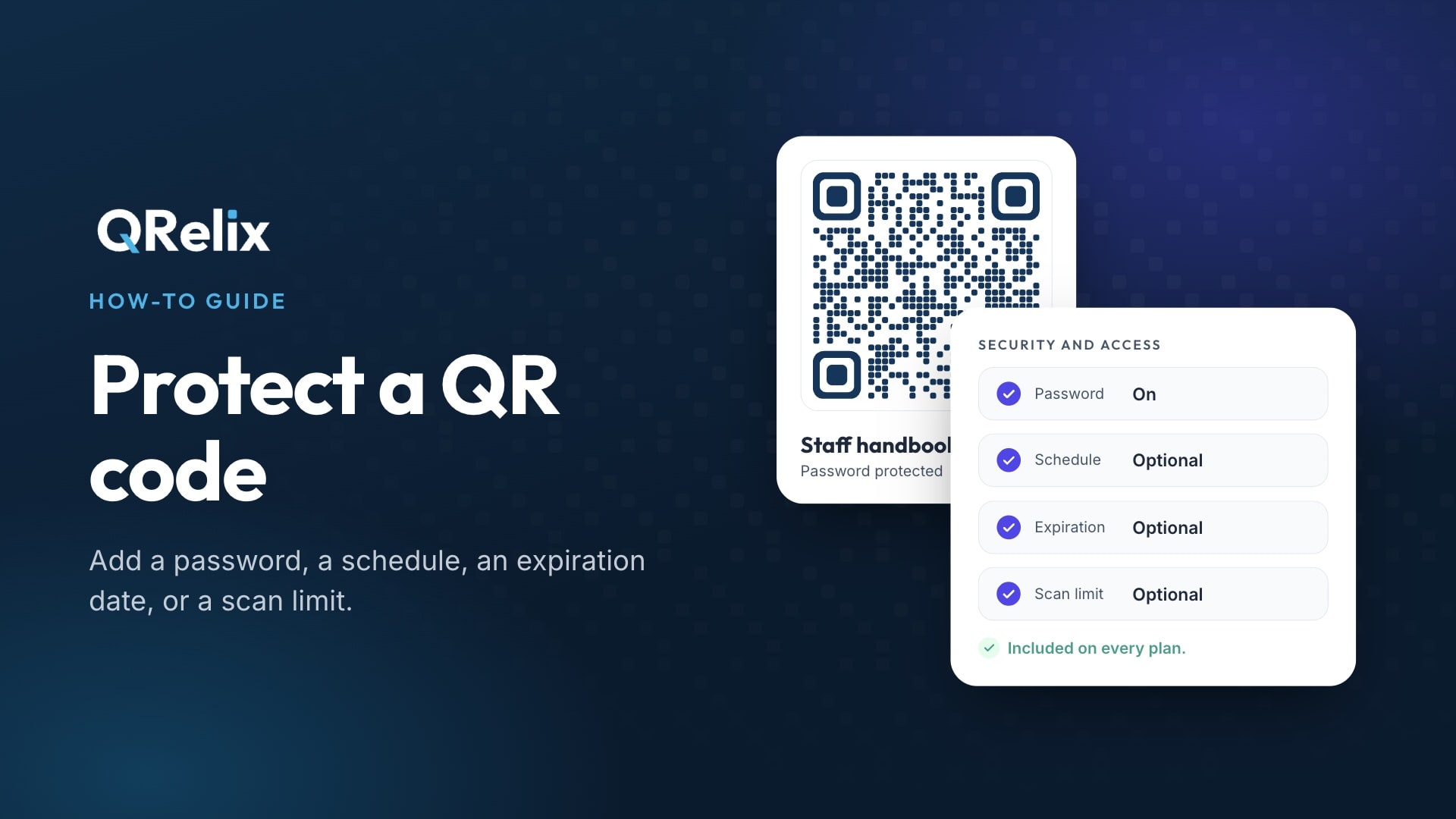
QRelix has six access controls for dynamic QR codes: a password, an expiration date, a release date, a scan limit, a geofence, and day and time windows. They decide who can open a code, where, and when, and you can change them at any time without reprinting.
Every control on this page is free on every plan, including the Free plan. QRelix Pro removes the QRelix screen and keeps your full scan history.
Prefer to watch? The video guide walks through these steps, and the printable PDF guide has the same steps with screenshots.
The six controls at a glance
Each code uses one control at a time. Choosing a different one replaces the current one.
| Control (as named in QRelix) | What it does | Example |
|---|---|---|
| Password protected QR code | Scanners must enter a password first. | Staff-only training videos on a break-room poster. |
| Vanishing QR code | Stops working at a date and time you choose. | A flash-sale flyer that ends Sunday at midnight. |
| Time-released QR code | Starts working at a date and time you choose. | A product-launch teaser printed before launch day. |
| Limited use QR code | Stops working after a set number of scans. | "First 100 scanners get a free coffee." |
| Geofenced QR code | Only works inside an area you draw on a map. | An in-store discount that only works in the shop. |
| Day and time access control | Only works on chosen days, within a time window. | A lunch-menu code that works Mon–Fri, 11:00–15:00. |
Where to set them
When creating a code: in the wizard at qrelix.com/create-qr-code, the Security step (titled "Security and access (optional)") comes after Design.
On an existing code:
- Go to your dashboard and select the code.
- Click Configure.
- Scroll to the Security and access card.
- Choose a control under Access control or Time and usage limits, fill in its details, and click Save changes.
Changes take effect on the very next scan. To remove a control, click the selected option again to turn it off, then click Save changes.
Password protected QR code
Scanners see a password prompt before they reach your content. A wrong entry shows "Incorrect password".
Set it up: choose Password protected QR code and type the password.
Tips:
- Pick something easy to say out loud but hard to guess, such as
BlueHarbor42. - Share the password separately from the code: by email, on a badge, or in person.
- Change the password whenever you need to cut off old access. The printed code stays the same.
Vanishing QR code (expiration date)
Pick a date and time. After that moment, scanners see a message that the code has expired, and its status shows Expired on your dashboard.
To extend a campaign, open Configure and set a later date.
Time-released QR code (start date)
Pick a date and time. Before that moment, scanners see a "not yet available" message. Afterwards the code works normally. It's great for printed materials that go out before an event or launch.
Limited use QR code (scan limit)
Enter the maximum number of scans (from 1 up to 10,000,000). When the limit is reached, scanners see a limit-reached message. Raise or remove the limit any time to reopen the code.
Example: set 100 for "the first 100 scanners win". The code closes itself on scan 101.
Geofenced QR code
The code only works for people inside an area you choose.
- Choose Geofenced QR code.
- Click the map to set the center point, for example your shop's entrance.
- Set the radius with a quick choice (50m, 100m, 250m, 500m, 1km, 2.5km, 5km) or enter your own value between 10 m and 10 km.
When someone scans, they tap Allow location access and their browser asks for permission (a returning scanner who already allowed it goes straight through). The phone's position is checked on QRelix's servers, and your content is only released when it is inside the area. People outside the area see a message that the code only works in a specific location.
A geofence needs the phone's precise location:
- Location declined: the scanner sees steps to allow location and can try again. There is no fallback to an internet-connection location, which is only accurate to about city level.
- Approximate location: an iPhone with Precise Location off, or an Android phone sharing approximate location, is not precise enough near your boundary. The scanner sees steps to turn precise location on.
Phone GPS isn't perfectly precise, especially indoors, so QRelix allows at least 100 m of extra tolerance beyond your radius. For an in-store offer, a 50 to 100 m radius around the shop works well.
Day and time access control
The code only works on the days and hours you choose, for example Monday to Friday, 09:00–17:00 (the default). Outside those hours, scanners see an "outside hours" message.
- Choose the days and a start and end time.
- The schedule uses the time zone you select, so it works correctly wherever your scanners are.
- Overnight windows work too, such as 22:00–02:00 for a nightclub.
Location settings for analytics
The Security and access card also has a Location for analytics section. These options control how precisely QRelix records where scans happen. They're about analytics, not access, and they're free on every plan:
| Option | What it does |
|---|---|
| Attempt device GPS location detection | Reads the phone's GPS location silently, only when the scanner already allowed location for QRelix. It never shows a prompt. Otherwise QRelix uses an approximate location from the internet connection. |
| Prompt for GPS location services | Shows the browser's own location prompt. A scanner who declines still reaches your content. |
| Require GPS location services permissions | Shows the browser's location prompt and holds the scanner on a page with steps to allow location until they do. Use this sparingly, because people who say no can't reach your content. |
Each option builds on the one above it, and they work on iPhone and Android in every major mobile browser.
Turning on a geofence switches all three on, because a geofence needs the scanner's location.
How security affects your analytics
- Scans blocked because a code has expired, reached its scan limit, isn't released yet, or is outside its hours are not counted.
- Scans that reach a password prompt or a geofence check are counted, whether or not the person gets through. So the scan count shows every attempt.
Frequently asked questions
Can I combine a password and an expiration date? Not on the same code. Each code uses one control. If you need both, use the control that matters most, or create two codes for different audiences.
Do I need Pro for security controls? No. Every control, plus pausing a code and the GPS location settings, is free on every plan. Moving between plans never changes your security settings.
Can scanners get around a geofence? Not by declining location or by opening the destination link directly: the check runs on QRelix's servers, which only release your content after a precise phone location inside the area. A determined person with a location-spoofing app could still fake their position, as with any web geofence. For anything sensitive, use a password instead of, or alongside, a geofence on a separate code.
Related articles
- Managing Your QR Codes: find the Configure page and other controls
- Analytics & Scan Tracking: see who's scanning your secured codes
- Billing & Subscription: Pro removes the QRelix screen and keeps your full scan history
- Getting Started: create a code from scratch
Questions
- Can I put a password on a QR code?
- Yes. Choose Password protected QR code in the security step and set a password. Scanners must enter it to continue, on every plan.
- Is the destination hidden until the password is entered?
- Yes. QRelix sends the destination to the scanner's browser only after a correct password.
- Can I combine a password with an expiration date?
- No. Each QR code uses one security control at a time, so choose the one that matters most.
- Can I set an expiration date on a QR code?
- Yes. Choose Vanishing QR code in the security step and pick the date and time it should stop working.
- What do people see after a QR code expires?
- A message that the code has expired. The code's status in the dashboard changes to Expired.
- Does a QR code expire if I do not set a date?
- No. A QRelix QR code expires only if you give it an expiration date.
- Can a QR code start working on a set date?
- Yes. Choose Time-released QR code in the security step and pick the release date and time.
- What do people see before the release date?
- A message that the code is not yet available. After the release time the code opens normally.