Downloading & Printing Your QR Code
A well-designed QR code is only useful if it scans reliably in the real world. This guide covers export formats, print sizing, material considerations, and testing. Everything you need to go from screen to physical print with confidence.
Export Formats
QRelix lets you download your QR code in three formats. Each is optimized for different use cases:
| Format | Type | Resolution | Best For |
|---|---|---|---|
| SVG | Vector | Scales infinitely | Print (business cards, posters, packaging, billboards, signs) |
| PNG | Raster | High-res with transparency | Digital (websites, social media, email signatures, presentations) |
| JPG | Raster | Compressed | Digital (general-purpose web use, smaller file sizes) |
The rule of thumb: If it's going to be printed, use SVG. If it's staying on screen, use PNG. Use JPG only when file size is a hard constraint.
Why SVG for Print
SVG (Scalable Vector Graphics) is a vector format, which means it can be scaled to any size, from a business card to a billboard, without losing sharpness. Raster formats like PNG and JPG are made of pixels, so enlarging them beyond their native resolution creates blur. For any physical print application, always use SVG.
How to Download
- Finish the creation wizard, or select an existing code from your dashboard.
- Click Download.
- Choose your format: PNG, SVG, or JPG.
You can re-download any code at any time. If you update the code's design or settings, download the latest version to make sure your print file matches.
Print Preview
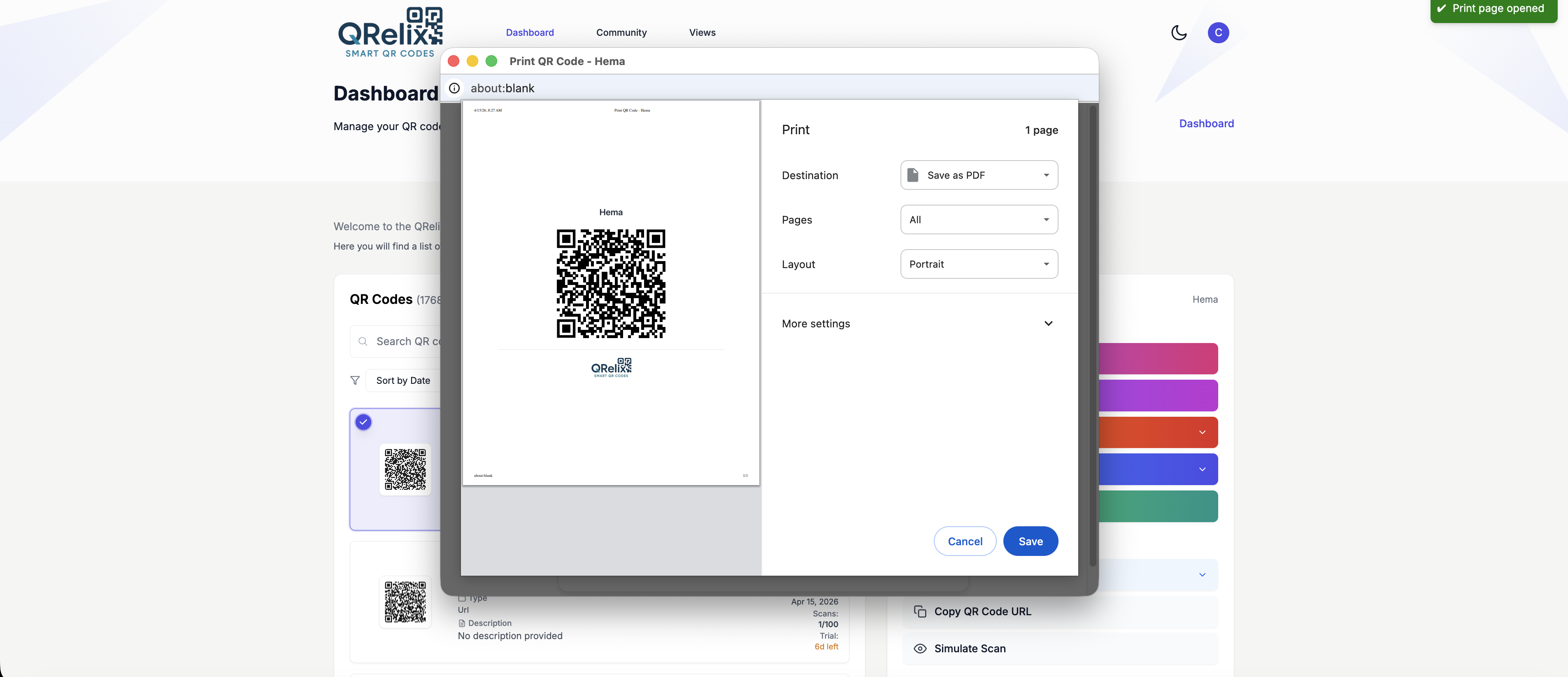
QRelix also includes a built-in print feature. Click Print QR Code from the actions panel to open a print-ready preview with your QR code and QRelix branding, ready for direct printing or saving as PDF.
Print Size Guidelines
QR code size depends on how far away the scanner will be:
| Scanning Distance | Minimum Code Size |
|---|---|
| Close range (handheld, for business cards and menus) | 2 cm x 2 cm (0.8 x 0.8 in) |
| Mid range (1 to 2 meters, for posters and shelf displays) | 5 cm x 5 cm (2 x 2 in) |
| Far range (3+ meters, for banners and signs) | 15 cm x 15 cm (6 x 6 in) |
| Very far range (10+ meters, for billboards) | 50 cm x 50 cm (20 x 20 in) |
A common rule: the QR code should be roughly 1/10th of the scanning distance at minimum. A poster scanned from 2 meters away needs a code at least 20 cm wide.
When in doubt, go bigger. An oversized QR code never fails, but an undersized one often does.
Quiet Zone
The quiet zone is the clear margin around your QR code that tells scanners where the code starts and ends. Without it, scanners may fail to detect the code entirely.
- Maintain at least 4 modules of clear space on all four sides.
- Don't overlap text, borders, or graphics into the quiet zone.
- QRelix's exported files include the quiet zone automatically, but check your design layout to make sure nothing encroaches.
Contrast and Color
- Dark modules on a light background is the universal standard. Every scanner is optimized for this.
- Avoid reflective, textured, or heavily patterned backgrounds underneath the code.
- If you customized your QR code colors in the design step, verify the contrast holds on your specific print material. A color that looks dark on screen may print lighter on certain papers.
Material Considerations
Matte finishes scan better than glossy. Glossy surfaces create glare that can interfere with camera-based scanning, especially under overhead lighting.
Flat surfaces are ideal. If the code will be placed on a curved surface (bottles, cups, tubes), increase the code size to compensate for distortion.
Outdoor placements need weather-resistant materials. Consider lamination, UV-resistant inks, or outdoor-rated substrates. A QR code that fades or smears in rain is a dead QR code.
Testing Before Print
Always test before committing to a full print run:
- Scan on iOS and Android. Use the native camera app on both platforms. Also test with at least one third-party scanner app.
- Print a test copy at final size. Scan from the expected distance. A code that scans fine on your screen may fail when printed at 1.5 cm.
- Test in the actual environment. If the code will be in dim lighting, on a curved surface, or behind glass, test under those exact conditions.
- Verify the destination. Make sure the URL or content loads correctly after scanning.
Since all QRelix codes are dynamic, you can fix a destination issue after printing without reprinting the code. But you can't fix a scan reliability problem without reprinting, so test thoroughly upfront.
Next Steps
- Customizing Your QR Code Design. Adjust colors, logos, and patterns before downloading
- Managing Your QR Codes. Re-download codes or update destinations from your dashboard
- Trackable QR Codes. Every code you print includes scan tracking automatically
- Getting Started. Full walkthrough from account creation to first code