

QR codes for asset and inventory tracking: one label, every scan logged
Put a dynamic QR code on each asset, point it at that item's record, and read the scan log to see when and where it was checked.
Use cases
How asset tracking use QR codes
Each of these is a dynamic QR code: the destination can change after printing, and every scan is counted.
Equipment Tags
Label tools, machines, and vehicles with a code that opens the item's record: manual, maintenance history, or a spreadsheet row. Change the record later and the tag keeps working.
Inventory Bin Labels
One code per shelf, bin, or pallet linked to the count sheet or stock page. Scan counts by code show which locations get checked and which never do.
Inspection Check-Ins
Each scan is logged with its time and device, so a code on a fire extinguisher, ladder, or site gate becomes a record of when it was last looked at.
Location History
Scans record an approximate location, and a device location when the scanner allows it, so you can see where a moving asset was last scanned.
Maintenance Requests
Point an asset's code at a repair form or a phone number, so the person standing in front of a broken machine can report it without hunting for who to call.
Audit Trails
Export the scan log as CSV for any code. Time, device, and location per scan give auditors a trail without a separate app on every phone.
In practice
A workshop prints one dynamic code per machine and links each to that machine's page in its maintenance sheet. Technicians scan before a service and the dashboard keeps a log of every scan with its time and device. When the sheet moves to a new system, the team edits each code's destination and the printed labels stay on the machines.
QR types
QR code types for asset tracking
QRelix supports 18 QR code types. These are the ones asset tracking use most.
- URL
- File
- Phone
- Note
- Maps
Every type comes with scan analytics, your colors and logo, and a destination you can edit after printing. See all features.
See every scan
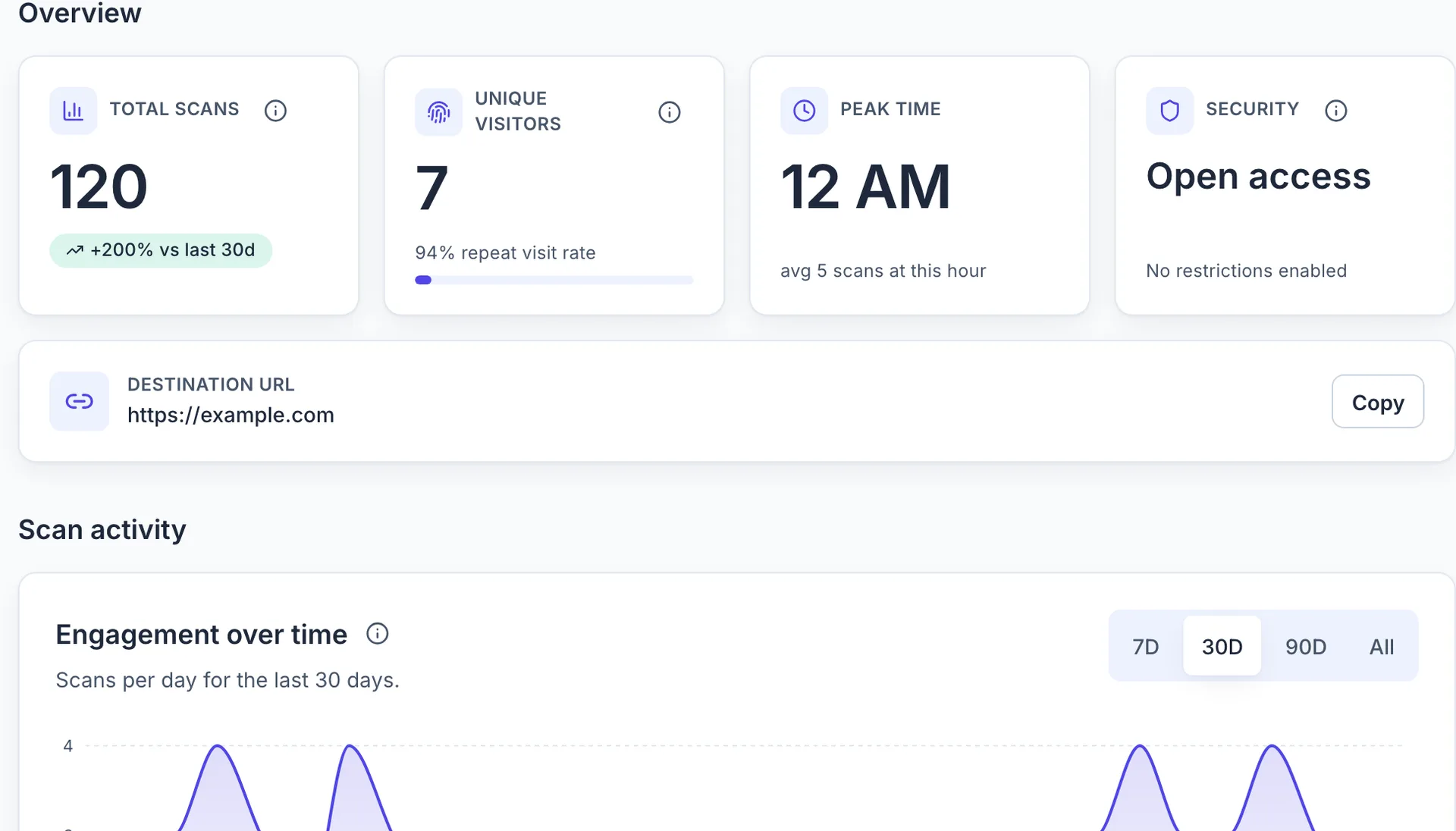
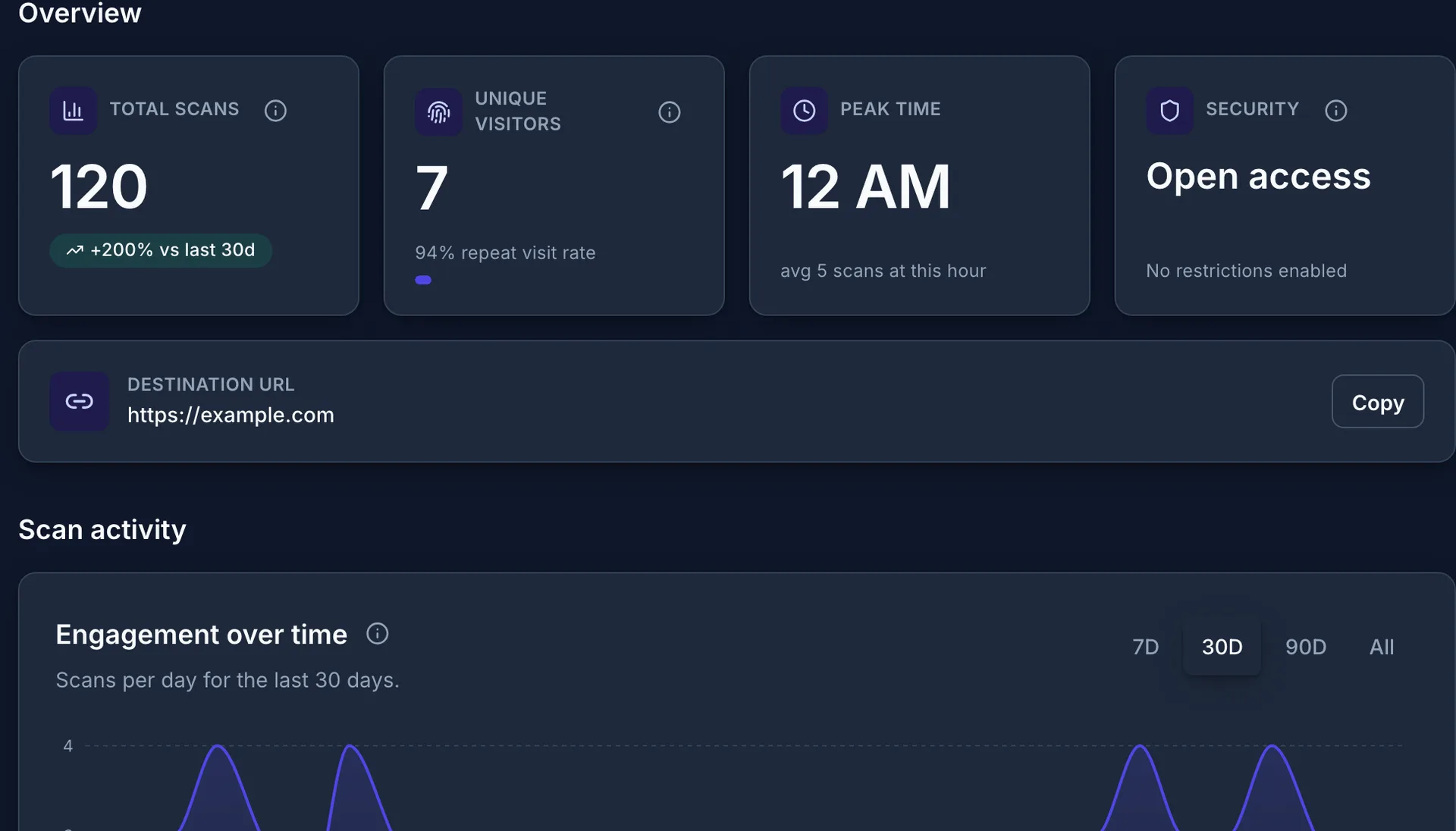
The dashboard records each scan with its time, device, and location, so you can compare placements and see when asset tracking codes get used.
Setup
How to track assets and inventory with QR codes
Four steps from a blank dashboard to a printed, trackable code.
Step 1 of 4
Give every asset a record and a dynamic code
Decide where each asset's record lives: a row in a spreadsheet, a page in your inventory tool, or a maintenance document. Go to /create-qr-code, pick the URL type, and paste that record's link. Make one code per asset, named after the asset tag, so the dashboard reads like your asset list.
Step 2 of 4
Label it to survive the shop floor
Download the 300 DPI SVG and print on laminated or polyester label stock; vinyl holds up outdoors and on equipment that gets wiped down. Keep the code at least an inch wide with a white margin, and put it where a phone can reach it without moving the asset.
Step 3 of 4
Scan at every check, service, or move
Each scan opens the record and is logged with its time, device, and approximate location. Ask the team to scan before an inspection, a service, or a transfer. On Pro, the scan can also capture the phone's precise location when the scanner allows it.
Step 4 of 4
Read the log and export it
The analytics page for each code lists every scan; export it as CSV when an auditor asks. When an asset is retired or its record moves, edit the destination or disable the code from the dashboard. The label on the asset never changes.
FAQ
Questions about QR codes for asset tracking
- Is QRelix an asset management system?
- No. QRelix is the QR code layer: a dynamic code for each asset that opens whatever record you keep (a spreadsheet, a document, a page in your inventory tool) and logs every scan with its time, device, and location. Pair it with the system you already use for the asset records themselves.
- Can I see when an asset was last scanned?
- Yes. Each code's analytics page lists every scan with its timestamp, device, and approximate location, and you can export the log as CSV. Free codes record up to 50 scans each; Pro codes have no scan limit.
- What happens if I move an asset's record to a new system?
- Edit the code's destination in the dashboard. The printed label stays on the asset and starts opening the new record on the next scan, with the scan history intact.
- Do I need an app to scan asset QR codes?
- No. The camera app on any iPhone or Android phone scans a QRelix code and opens the asset's record in the browser. There is nothing to install on the phones of the people doing the scanning.
- Can I restrict who can open an asset's record?
- QRelix Pro can put a password on a code, limit it to a geofenced area, or restrict it to a schedule. The record itself lives in your own tool, so its own permissions still apply after the scan.
- How many assets can I label on the free plan?
- There is no limit on the number of codes. Free codes each record up to 50 scans and show a short QRelix screen on scan; Pro removes both for $5.99 a month, which is usually the right fit once a label is scanned daily.
Resources
Asset Tracking guides and free tools
Tutorials for the setups above, and browser-based generators for static codes.
Create QR codes for your assets
Free plan, no credit card, no account up front. Each free code works for its first 50 scans and shows a brief QRelix-branded screen; Pro removes the branding and the scan limit.
Create a free QR code